The Last Password You’ll Have to Remember
This article is for general information. Security settings and product features change — verify the current steps with your device maker or account provider before relying on them.
The email looked right. The logo was right, the sender name was right, the wording was polite and a little urgent, and the link went to a page that looked exactly like the one you’ve signed into a hundred times. You typed your password. You even typed the six-digit code they texted you, because the page asked for it and that seemed like the careful thing to do.
That’s how it happens. Not to careless people. To careful people having a busy Tuesday.
And here’s the part worth sitting with: every bit of that worked because you had something to give away. A password is a secret you hand over. Which means any page convincing enough to ask can take it.

There is now a replacement that fixes this at the root, it’s already on the phone in your pocket, and most people over 55 have been declining it for two years because the prompt showed up at a bad moment and looked like one more thing to figure out.
It’s called a passkey. Let me explain what it actually is, because once you see the mechanism, the rest of this becomes obvious.
It’s a key, not a word
A password is a word you know. A passkey is a key your device holds, and it works like a lock and key that were made for each other and for nothing else.
When you create a passkey for a site, your device generates two mathematically linked pieces. One — the public key — goes to the website. The other — the private key — stays on your device. As Apple puts it, the private key never leaves your device, and the server never learns what the private key is.
Signing in is a challenge and an answer. The site sends a puzzle only your private key can solve. Your device solves it and sends back the answer. Nothing secret crosses the wire. Ever.
A password is a secret you hand over. A passkey is a key you never let go of.
Why it can’t be phished
Now run the scam from the top of this piece again.
The fake page asks for your passkey. And there is nothing to type. No secret exists on your end to hand over. The attacker can build a page pixel-perfect enough to fool anyone, and there is simply nothing there to take.
There’s a second lock, too. A passkey is bound to the real web address it was created for. Your device checks the address before it will answer. A look-alike domain — one letter off, a different ending — isn’t the site your key was made for, so your device doesn’t respond. It doesn’t ask you to be careful. It just doesn’t work.
That’s the whole argument, and I want to be precise about why it matters at our age. People over 55 are targeted relentlessly, and the usual advice is to be more vigilant. Vigilance is a fine thing. It is also a strategy that requires you to be right every single time for the rest of your life. A passkey is protection that holds even on the day you’re tired and you get it wrong.
I’ll take the one that doesn’t depend on me being sharp at 4 p.m.
“So my fingerprint is my password now?”
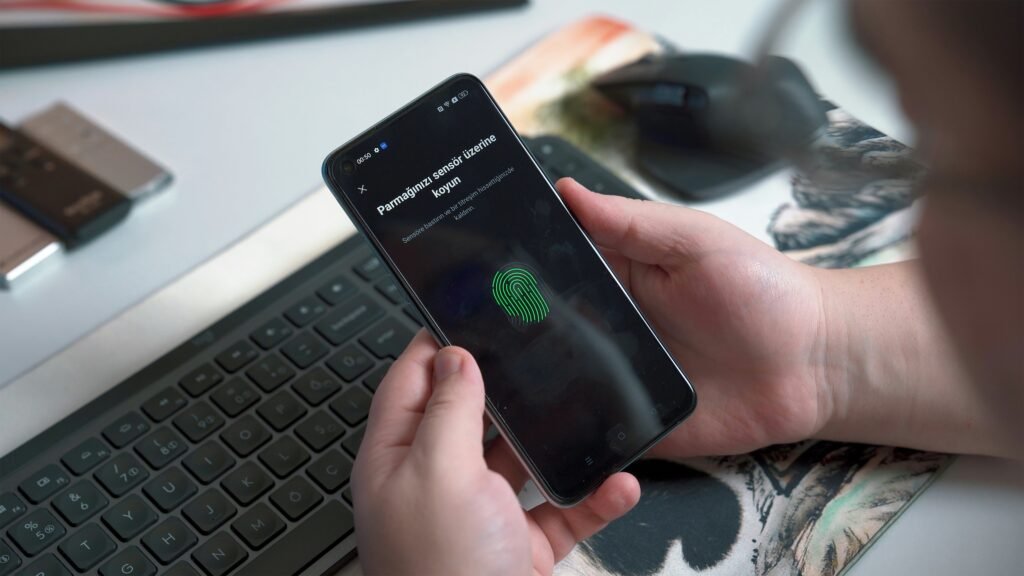
No — and this is the piece that gets explained badly everywhere.
Your fingerprint or your face does not get sent anywhere. It never leaves your phone. All it does is unlock the key that’s already sitting on the device. Google says it plainly: the biometric data used for fingerprint or face unlock stays on your device and is never shared with Google.
So the chain is: your face opens your phone, your phone holds the key, the key answers the site. The website never sees your face, your fingerprint, or your key. It only ever sees a correct answer to its puzzle.
If you’d rather not use biometrics at all, your device PIN works the same way.
“What happens if I lose my phone?”
This is the real question, it’s the right question, and most articles skate past it. Here’s the honest answer.
Passkeys sync. On an iPhone they live in iCloud Keychain, which Apple says is end-to-end encrypted with keys Apple itself doesn’t hold. On Android they sync through Google’s password manager. Sign in on a new phone and your passkeys come back with everything else.
If you lose every device at once, there’s a recovery path. On Apple’s side it means proving who you are with your Apple Account, a code sent by text, and your old device passcode. Worth knowing: Apple limits that to ten attempts before the record is destroyed on purpose — so write your device passcode down and keep it with your important papers, the same way you’d keep a spare house key somewhere sensible.
And a practical note that removes most of the anxiety: adding a passkey usually doesn’t delete your password. For a while you’ll have both. Keep the password in your password manager as a spare tire. You don’t have to burn the boats to get in the water.
“Am I locked into Apple or Google forever?”
You were, for a while. That was a fair objection, and I said so when people raised it.
It’s been answered. The FIDO Alliance — the industry group behind this whole standard — published specifications in October 2024 for moving credentials securely between providers, and Apple shipped it in iOS 26 and macOS Tahoe 26. You can now move your passkeys out of Apple’s Passwords app into 1Password, Dashlane or Bitwarden, and move them back, with the transfer protected on-device and requiring your face or passcode to approve.
Before that, the only way to “move” credentials between managers was to export them into a plain readable file — which is exactly as bad an idea as it sounds. That era is over.
Signing in on somebody else’s computer
Here’s the one people assume is a dealbreaker, and it isn’t.
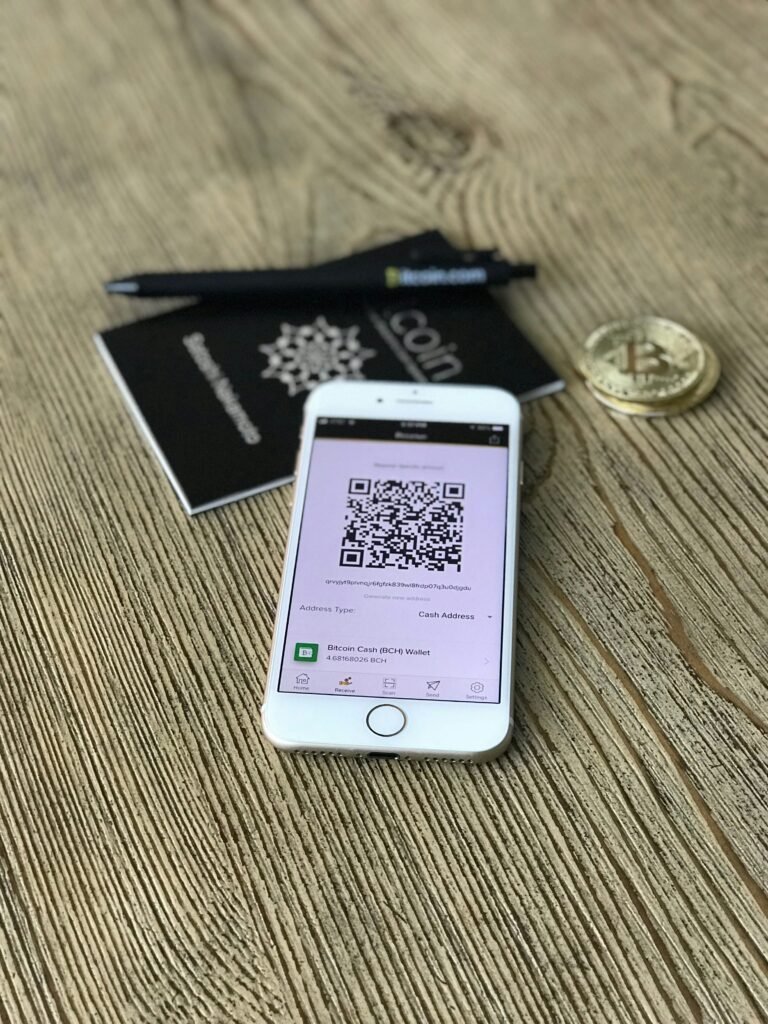
You’re at your daughter’s house and you need to get into your account on her laptop. The site shows a QR code. You point your phone’s camera at it, approve with your face or your PIN, and you’re in on her computer.
Your passkey never touches her machine. Nothing is saved there. Nothing to forget to log out of.
The one firm rule: don’t create a passkey on a shared or public computer. Google says this outright. Use the QR method instead — it’s built for exactly this.
Is it actually better, or just newer?
Fair question. There are numbers, and they’re not subtle.
Microsoft reports that people signing in with a passkey succeed about 98 percent of the time, against about 32 percent for people signing in with a password. Read that twice. Two out of three password sign-in attempts fail somewhere — wrong password, forgotten password, reset email, the whole miserable loop. Microsoft also measures passkey sign-ins as roughly eight times faster than a password plus a texted code.
And since May 2025, brand-new Microsoft accounts are passwordless by default — new users never enroll a password at all.
That’s the thing to understand about those prompts you’ve been dismissing. This isn’t a company testing an idea. The industry has decided, and the only question left is whether you move on your schedule or theirs.
Where to start this week
Don’t convert your whole life. Convert one account and see how it feels.
- Pick the right first one. Your Google, Apple or Microsoft account — whichever one your email lives in. That account is the master key to everything else, so it’s the one worth protecting first.
- Look in your account’s security settings for “Passkeys” or “Sign in without a password,” and follow the prompt. It takes under a minute.
- Don’t delete your password yet. Leave it in place as a backup while you get used to this.
- Write your device passcode down and put it with your estate papers — not in a note on the phone it unlocks.
- Add the second one a week later. Your bank, or whichever account would hurt most if somebody else got in.
- Next time a site offers, say yes instead of “not now.”
One last thing
I spent a long time in work where the whole job was removing the chance to make a mistake under pressure. You don’t train people to be careful in an emergency. You build the thing so that being careless doesn’t kill anybody.
That’s what this is. Not a gadget. A design that stops asking you to be perfect.
You will still get the convincing email. You’ll still have the busy Tuesday. The difference is that there will be nothing in your hands for them to take.
Go be bold!
If this was useful, subscribe so you don’t miss Monday, Wednesday, or Friday — and send it to somebody who still writes their passwords on a card in the desk drawer.
Sources
- Apple — About the security of passkeys
- Google — Sign in with a passkey
- Microsoft — Pushing passkeys forward
- FIDO Alliance — Specifications for credential portability